Tutorial
Your first review, start to finish.
This walkthrough takes about fifteen minutes. No technical skill is needed. By the end you will have installed CiteMatch, run a review on a practice brief, read a receipt, and built a Table of Authorities.
Part 1: Install it
CiteMatch runs inside Word on your Mac or Windows computer. The install is one small file and takes about five minutes. There is nothing to configure and no license key to type.
Follow the steps on the install page. It walks you through each click for your kind of computer. When you see CiteMatch on the Home ribbon in Word, come back here.
Part 2: Run the sample brief
Do not start with client work. CiteMatch ships with a practice brief that has a planted mistake, so you can watch it catch a bad quote before you trust it.
- Open Word and click CiteMatch on the Home ribbon. The pane opens on the right.
- Sign in with the email on your CiteMatch account.
- Open a blank document, then choose the sample brief in the pane.
- Click the big button: Check my brief.
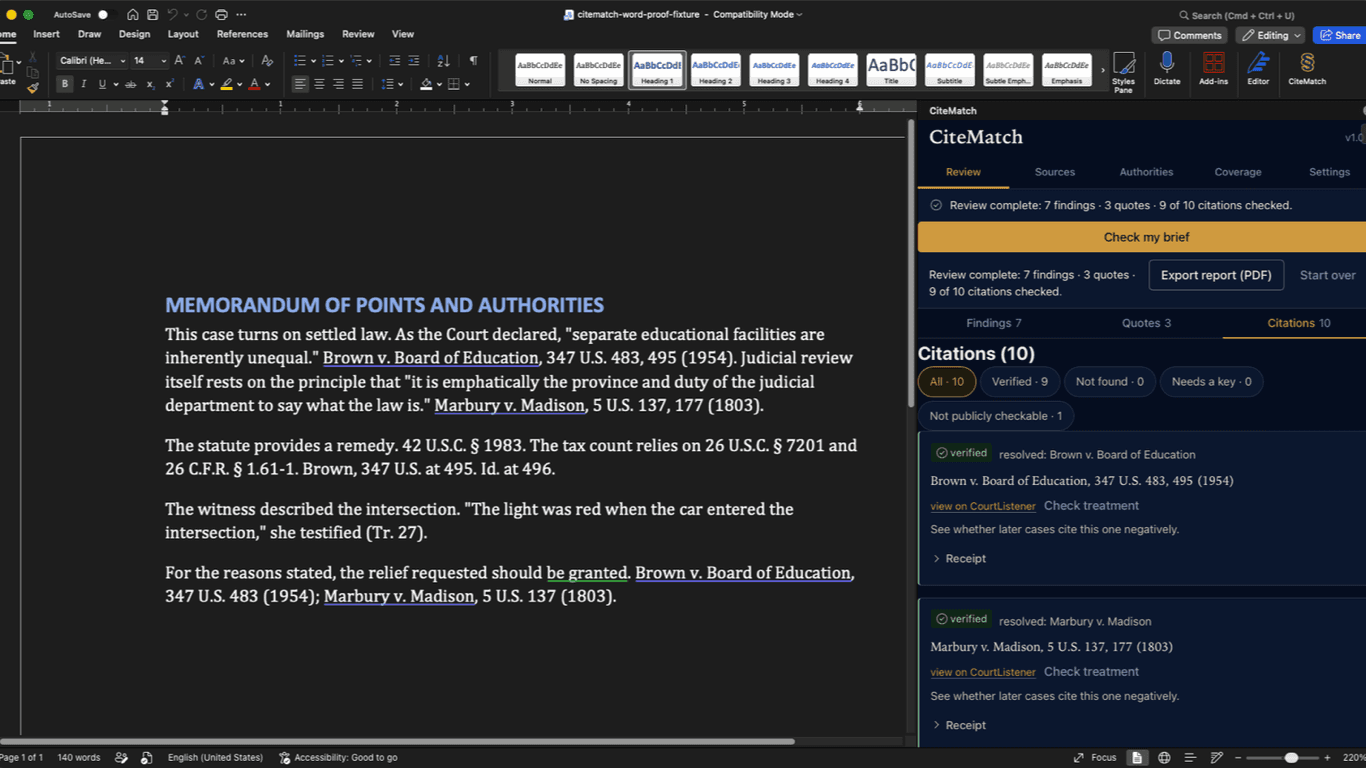
The review runs in the pane. You will see counts fill in: findings, quotes, and cites checked.
Part 3: Read a result
Click any result to open it. A green verified badge means the source says what your quote says. A red mismatch means the words differ, so go look. Not found means the source did not turn up. Unverifiable means there was not enough source text to check.
Every result has a receipt. It shows which source was used, which words were compared, and what the check could not cover. If a case has later negative cites, you will see a note to go read them. The planted mistake in the sample shows up here as a mismatch. That is the product working.
Part 4: Fix, then build the table
Style fixes arrive as tracked changes, so you stay in charge. Accept the ones you want. Reject the rest.
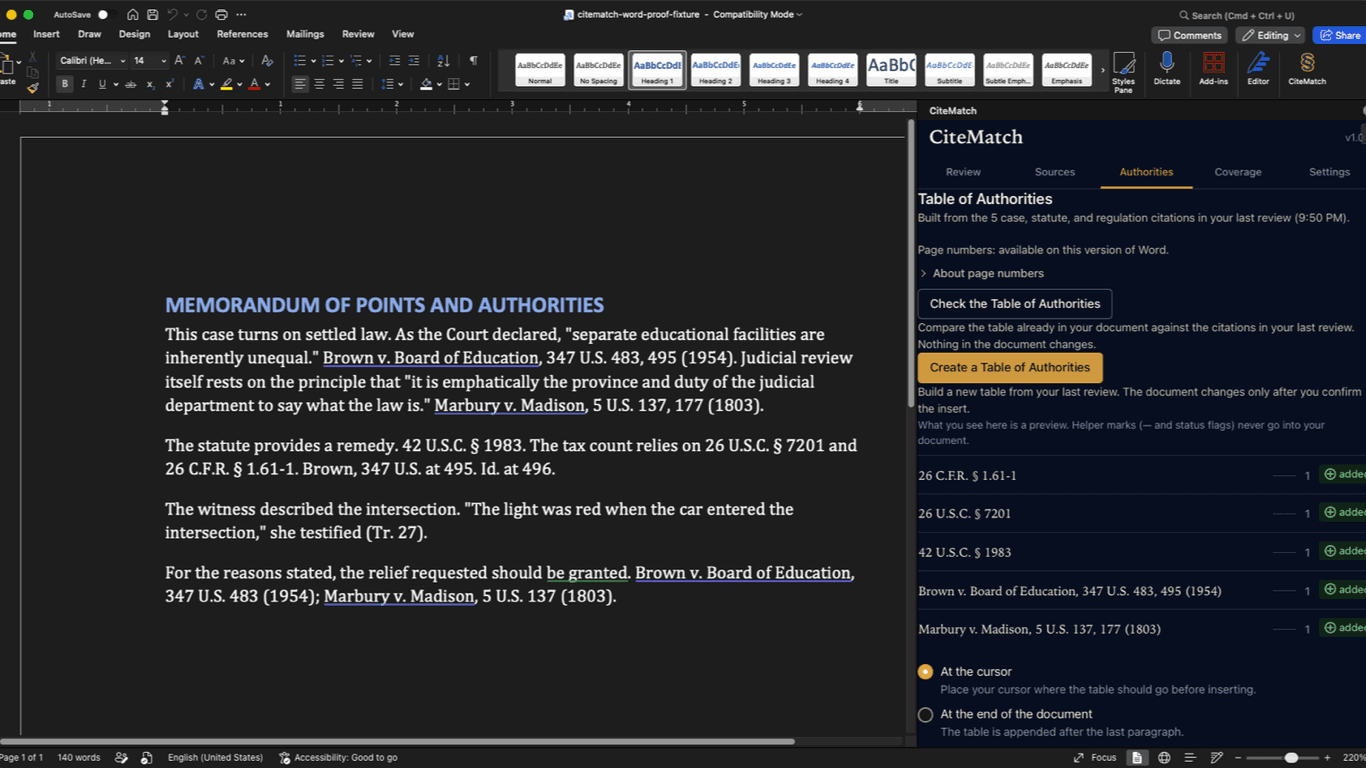
Then open the Authorities tab. CiteMatch lists the cites from your review and shows a preview of a Table of Authorities. Pick where it should go. Nothing lands in the document until you confirm it.
Part 5: The optional helper (Mac)
You do not need the helper to use CiteMatch. It adds one thing: when a quote could belong to two cites, a small model on your Mac can suggest the right one, or stay quiet. It never decides whether words match, and your document never leaves your computer.
The download and its five steps are on the install page. Setup asks for your Mac password once, to approve the helper's secure local connection. After that it starts with your Mac and works on its own. Skip this part freely; you can add it any time.
Part 6: Your own brief
Now open a real brief and click Check my brief. Work top to bottom through the results. Anything marked not found or unverifiable still needs your own review. CiteMatch tells you what it could not check instead of guessing.
When you are done, you can export the review as a PDF for the file. If you get stuck at any point, email team@citematch.app and a person will help you.
The screenshots above come from our own synthetic practice brief. No client document is ever used on this site.